Menumou for ChatGPT
Menumou is a ChatGPT app that lets you manage your restaurant menus right from a chat. List your menus, search products, change prices, and add or remove products — without opening the Menumou dashboard.
What the app can do
See your menus
List your menus and open any of them to see its categories, price columns and products.
Find products
Search for a product by name or description, or browse everything in a category.
Change prices
Update the price of a single product without editing the whole menu.
Add or remove products
Add a new product to a category, or remove one you no longer serve.
When you connect, you grant two permissions:
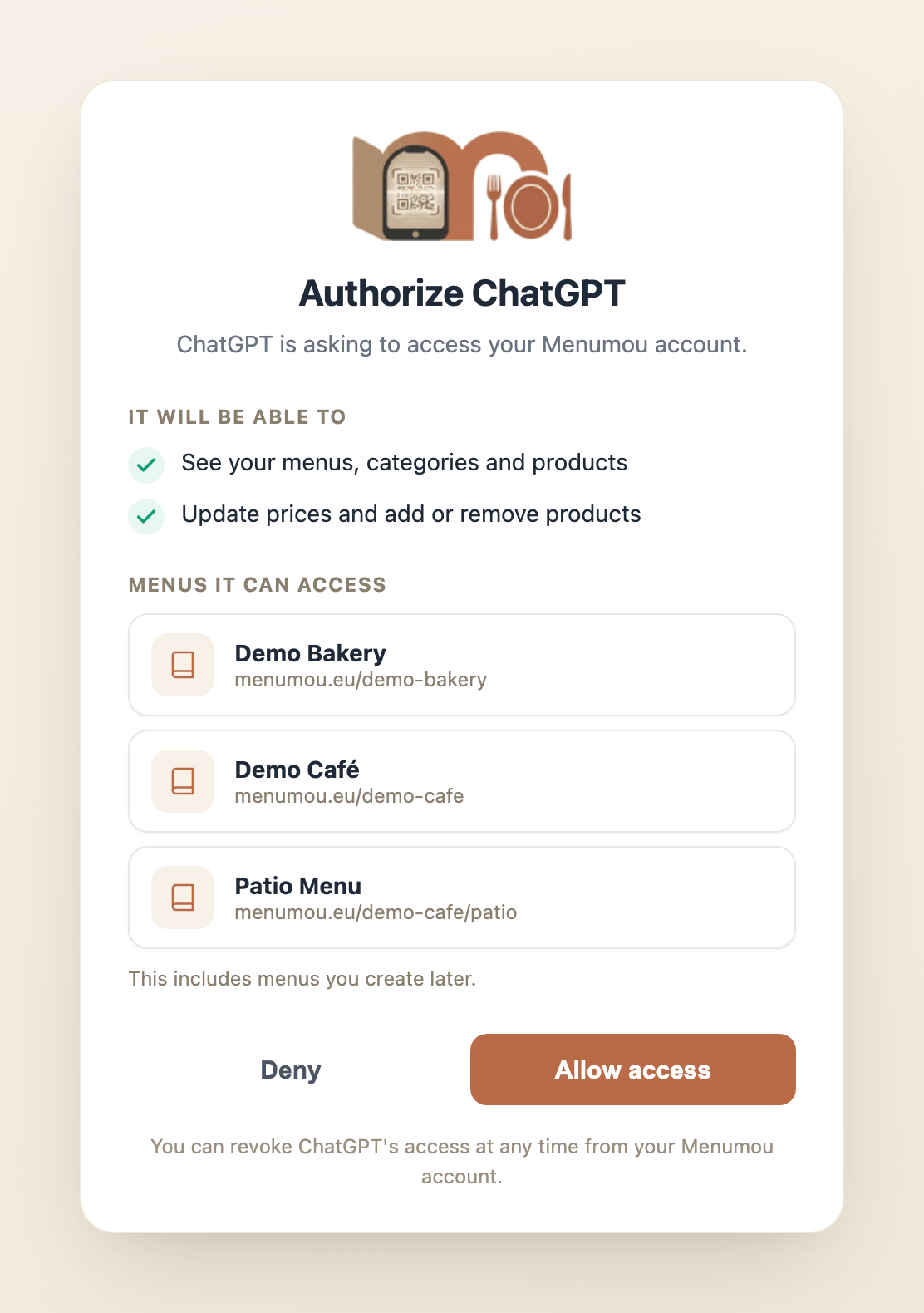
menu:read— see your menus, categories and products.menu:write— update prices and add or remove products.
The app works only on the menus owned by the Menumou account you sign in with. It cannot see other accounts' menus, place customer orders, take payments, or change your opening hours or menu design. ChatGPT asks for confirmation before destructive actions such as removing a product.
How it works
Menumou exposes a Model Context Protocol (MCP) endpoint at https://menumou.eu/mcp.
ChatGPT connects to it and calls a small set of tools to read and edit your menus. The endpoint
is protected with OAuth 2.1 and PKCE: you sign in with your Menumou account and approve the
permissions before ChatGPT can do anything.
Access tokens are short-lived (1 hour) and are never stored on our servers. Refresh tokens are stored only as hashes, expire after 60 days, and are revoked immediately when you revoke access. Menumou only reads or changes a menu when you ask ChatGPT to do so.
Connect Menumou in ChatGPT
Menumou is published in ChatGPT's app directory, so there is nothing to configure by hand: you add the app, sign in, and approve access. The exact menu names may change as ChatGPT is updated, but the flow is:
- Open ChatGPT and sign in with your own OpenAI account.
- Open the app directory — from the apps/tools menu in the message box, or under Settings → Connectors — and search for Menumou.
- Select Menumou and choose to add or install it.
- ChatGPT opens the Menumou sign-in page: sign in with the Menumou account that owns the menus you want to manage (magic link, Google, or password).
-
Review the requested permissions (
menu:readandmenu:write) and approve access. You are returned to ChatGPT once the connection is complete. - In a chat, enable the Menumou app from the apps/tools menu and ask something like "Show me my menus" or "Change the Large Espresso price to €4.00".
If ChatGPT asks you to reconnect later, open the Menumou app's settings in ChatGPT and follow the sign-in prompt again.
Manage or revoke access
You can revoke access at any time. Revocation takes effect immediately: ChatGPT can no longer
reach your menus and the next request returns 401 until you reconnect.
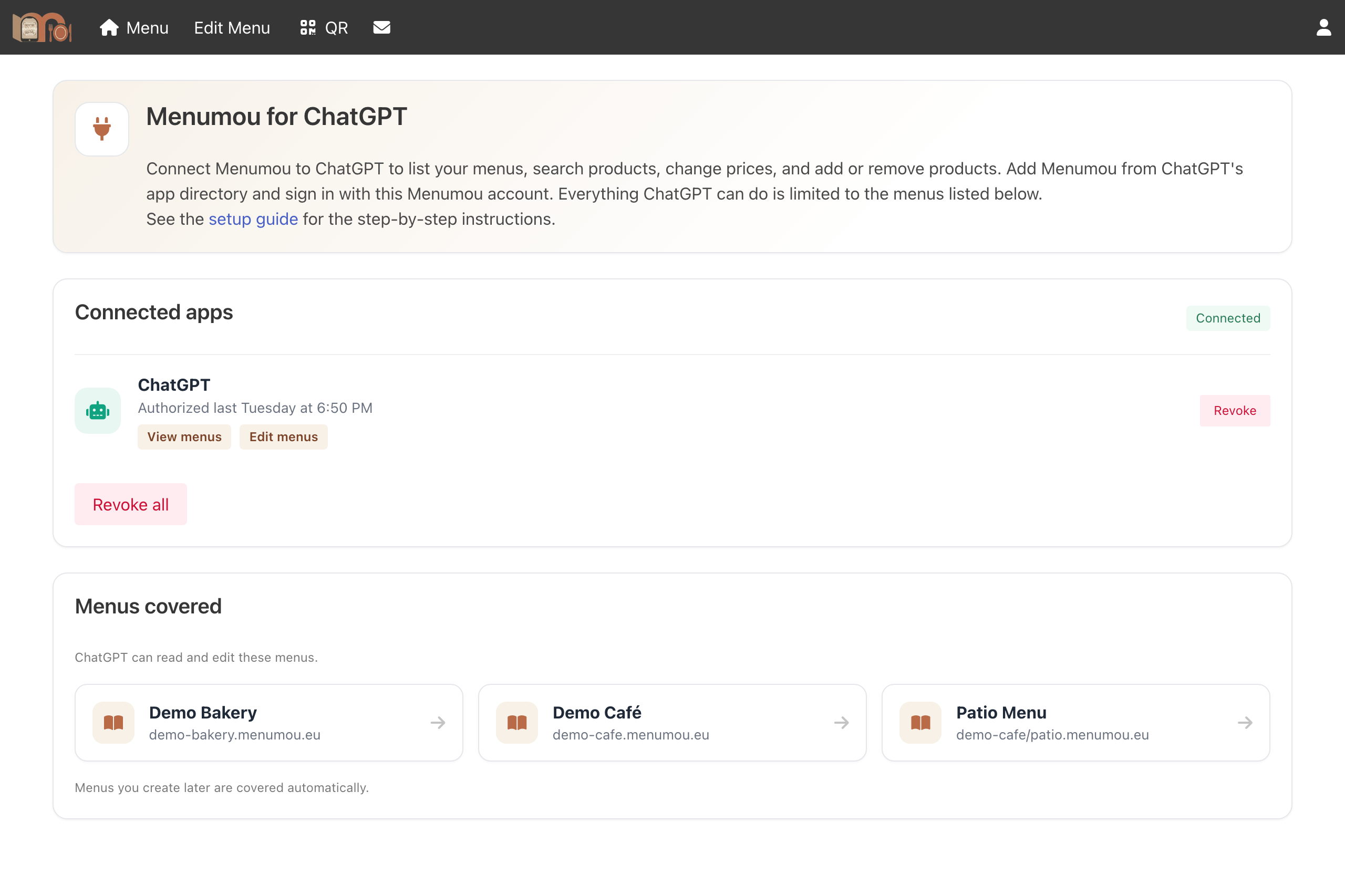
From Menumou
- Sign in to your Menumou dashboard.
-
Open the account menu in the top-right corner and choose ChatGPT, or go
directly to the connections page at
https://menumou.eu/<your-menu>/backend/plugin. - There you can see every connected app and the menus it covers. Use Revoke to disconnect a single app, or Revoke all to disconnect every app at once.
From ChatGPT
- Open Settings → Connectors (or the app's settings from the apps menu).
- Select Menumou and choose to disconnect or remove it.
You can also email [email protected] and we will revoke the connection for you.
Privacy and security
Menu data is only sent to OpenAI when you use the app and only for the menus you own; it is then processed under OpenAI's own privacy policy. We never sell your data. For the full details, see our Privacy Policy and Terms of Service.